Getting Started with the Screen Protractor
After you've installed the Screen Protractor you should find using the tool straightforward. You can use the tips below to get the most out of the Protractor and measure like a pro.
To use the Protractor drag the application over the portion of a window you want to measure with the mouse. The center of the Protractor 'bullseye' is see-through so you will be able to exactly align it. To change the angle use the mouse to drag the two sliders. The number in the text box will show the exact angle in degrees. The Protractor has several buttons which may appear differently on different skins. The arrow buttons will allow you to move and rotate the Protractor to measure any angle. All the controls can be accessed through the keyboard:
| Arrow Keys | Move Protractor |
| Shift + Arrow Keys | Extend 1st Slider |
| Shift + Alt + Arrow Keys | Extend 2nd Slider |
| Ctrl + Arrow Keys | Move Protractor by 10 |
| Ctrl + Shift + Arrow Keys | Extend 1st Slider by 10 |
| Shift + > | Rotate 1st Slider clockwise |
| Shift + < | Rotate 1st Slider counter-clockwise |
| Shift + Alt + > | Rotate 2nd Slider clockwise |
| Shift + Alt + < | Rotate 2nd Slider counter-clockwise |
| C | Cycle 1st Bar Color |
| K | Cycle 2nd Bar Color |
| F | Rotate 1st Slider to nearest 45 degrees |
| Alt + F | Rotate 2nd Slider to nearest 45 degrees |
| L | Rotate 1st Slider to last 45 degrees |
| Alt + L | Rotate 2nd Slider to last 45 degrees |
| I | Swap Angles |
| S | Toggle Sticky Angles |
| A | Toggle Link Angles |
| N | New Protractor |
| Q | Quit |
| H | Hide in System Tray |
| F1 | Show Help |
| Ctrl+C | Copy Value to Clipboard |
| Ctrl+V | Paste Value from Clipboard |
| Z | Undo/Redo Movement |
| Doubleclick mouse | Flip handles between horizontal and vertical |
| Right-click mouse | Show Protractor menu |
While Dragging the Base:
| Shift | Limit movement to 45 degrees |
| Alt | Limit movement to 1st Slider |
| Ctrl | Limit movement to 2nd Slider |
While Dragging the Slider:
| Shift | Lock Angle |
| Alt | Lock Measurement |
| Ctrl | Override 'Sticky Angles' |
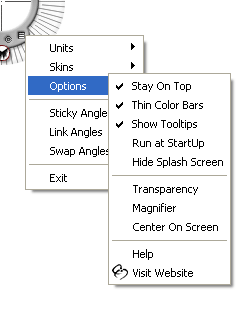
By typing a number and pressing 'Enter' the Protractor will update to measure the new angle. Simple calculations may be performed by typing -, +, *, or / and then a number, then 'Enter'; the Protractor will update to the new relative angle.When Closed the Protractor sits in the System Tray By Right-clicking anywhere on the face of the Protractor, or clicking on the System Tray icon the Protractor menu is displayed. The menu is divided into four sections:
| Units | Change the scale of measurement |
| Skins | Choose a new user interface |
| Options | Access more options |
Additionally there are the options:
| Sticky Angles | Snap rotation to nearest 45 degrees |
| Lock Angle | Lock angle when dragging |
| Lock Measurement | Lock measurement when dragging |
| Exit | Close the program |
The Units menu allows you to choose a new unit from the list of predefined units. You may also configure your own Custom Units using the 'Configure Units' menu option. Choosing this option will bring up a screen which allows you to choose a Custom Unit, rename and set the scale. You may also set the zero point, enabling easy relative measurement to be calculated. The Skins menu presents several different choices for the user interface of the Protractor. By choosing the "Get More Skins" menu item you will be taken to the Screen Protractor skin webpage. This allows you to browse and download new skins. Full instructions are given on the webpage. The Options menu contains a sub menu of the following options:
| Stay On Top | Controls floating above other windows |
| Thin Color Bars | Toggles thin or thick Color Bars |
| Show Tooltips | Shows/Hides info popups for buttons |
| Run at Startup | Opens Protractor when computer starts |
| Hide Splash Screen | Hides the picture at startup |
| Transparency | Pops up a slider to control how see-through the application is |
| Magnifier | Opens the IconicoScreen MagnifierApplication |
| Center On Screen | Moves the Protractor to screen center |
| Help | Shows Help |
| Unlock Application | Accepts your serial number |
| Visit Website | Links to Protractor homepage |
Configure Custom Units
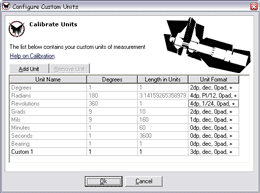
The Protractor use conversion factors to determine the built in units. You can adapt these units and enter your own custom units. In version 4.0 for Windows the configuration screen allows you the choice of setting the display to be in fractions, padding the display with blank digits and showing negative angles when measuring angles greater than 180 degrees. Double-clicking in the Unit Format column will show the popup that lets you control these settings
The Protractor can be configured to measure in the following units:
- Degrees
- Radians
- Revolutions
- Grads
- Mils
- Minutes
- Seconds
- Bearing
By clicking the 'Calibrate Units' menu item you can easily define any number of additional units of measurement.
Troubleshooting


