How UI/UX Designers Audit Pixel Precision & Padding on Windows 11

Chief Executive Officer
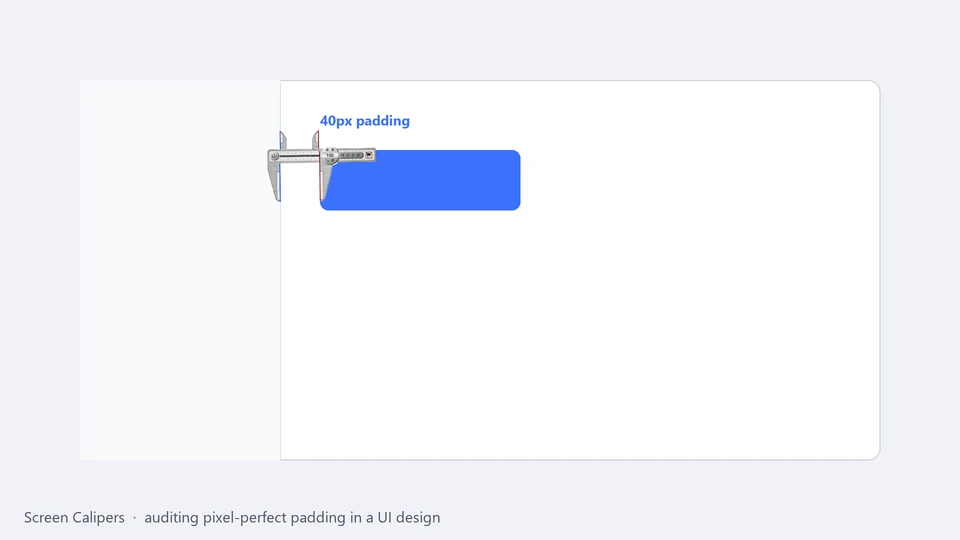
The gap between Figma and the final product
You've spent hours perfecting the padding, alignment, and hierarchical spacing in Figma or Sketch. The design tokens are set, and the handoff to engineering is complete. But when you finally look at the staging build on Windows 11, something feels "off". Perhaps a button is 2 pixels too far to the left, or a sidebar feels slightly crowded.
Is it the browser rendering engine? A subtle CSS flexbox alignment issue? Or just a misunderstood spacing variable in the code? In many cases, the final rendered product on a user's screen differs from the static design file due to system-level font rendering, browser zooming, or high-DPI scaling.
Auditing pixel precision on a live screen is a critical step in the modern UI/UX workflow. Browser DevTools are indispensable for debugging code, but they have a major limitation: they only measure elements inside the browser's box model. They don't give you a true "eye-level" view of how elements align across different windows, system-level overlays, or integrated desktop applications.
Using an on-screen pixel ruler
Screen Calipers were designed for this exact scenario. Unlike browser-only rulers, they float above your entire Windows desktop.
- Audit Component Padding: Measure the exact distance between a container edge and its nested content. Instead of hovering in DevTools and seeing a computed value, you can drag the caliper jaws to the visual edges of the rendered pixels. This reveals the real spacing users see.
- Verify Vertical Rhythm: Use the rotation feature to turn the calipers 90 degrees. Measure the baseline-to-baseline distance between lines of text or the margin between paragraphs to ensure your typography scales correctly across different viewport widths.
- Cross-App Alignment: Does your new Electron-based desktop app sidebar match the 64px width of your web dashboard? Since the calipers are a system-level overlay, you can measure an element in one app, switch to another, and verify if the alignment persists.
- Sub-Pixel Nudging: Use the arrow keys on your keyboard for one-pixel adjustments. This is essential when checking if a 1px border-radius or a subtle drop shadow is rendering "blurry" due to sub-pixel positioning issues.
- Angled Measurement: Unlike standard browser rulers, Screen Calipers can rotate to any angle. Use this to measure the length of an angled UI element or the distance between two points in a 3D isometric mockup.
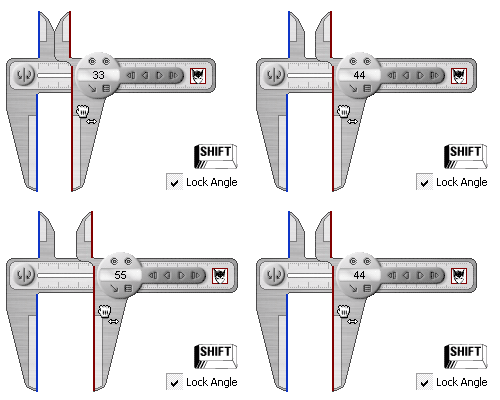
Beyond raw pixels: Calibration
If you're working with high-DPI displays or specific design systems that use custom units (like 'rem' or 'em'), you can calibrate Screen Calipers to show those units instead of raw pixels. This makes the audit workflow feel native to your design spec.
Improve your UI precision today.
Download the free trial on the Screen Calipers page .
Try Screen Calipers
Download the free trial for Windows 10 and 11, or buy a license.
